Adding services to a host
In order to add a service to a host:
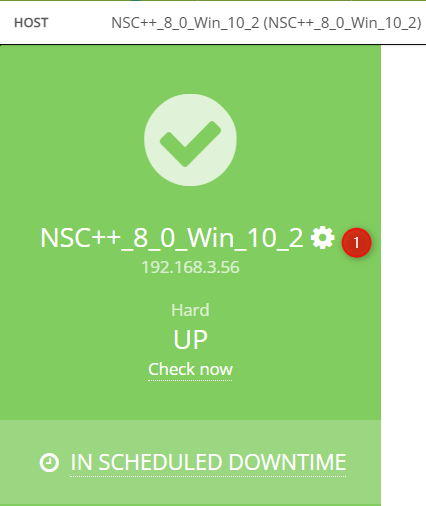
Pick the host from the “Monitor” -> “Hosts” -> “All Hosts” menu and access it’s configuration page through the “Gear” icon.
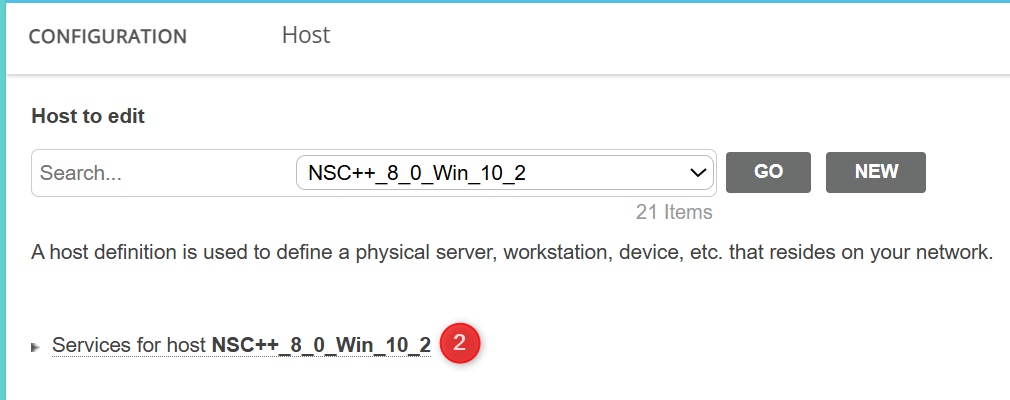
Enter the service menu either through the link under the search bar or through a shortcut bar on the right side of the screen.
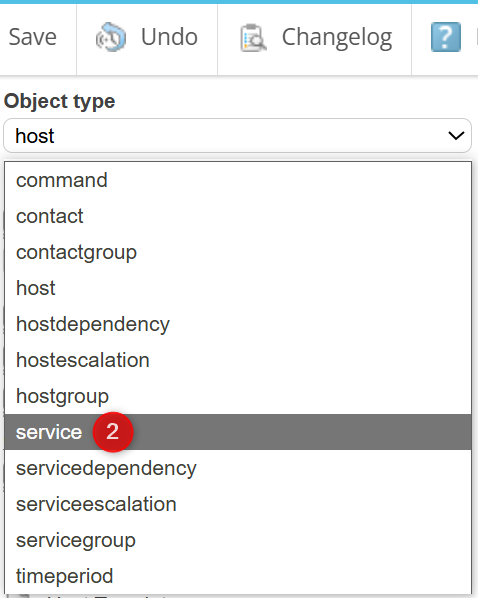
Specify the service parameters
Parameters include:
- Service description

- Check command

    - this is the metric that will be monitored.

- Check command arguments:

    - this determines the parameters of the metric

- File

    - Where the metric will be saved.
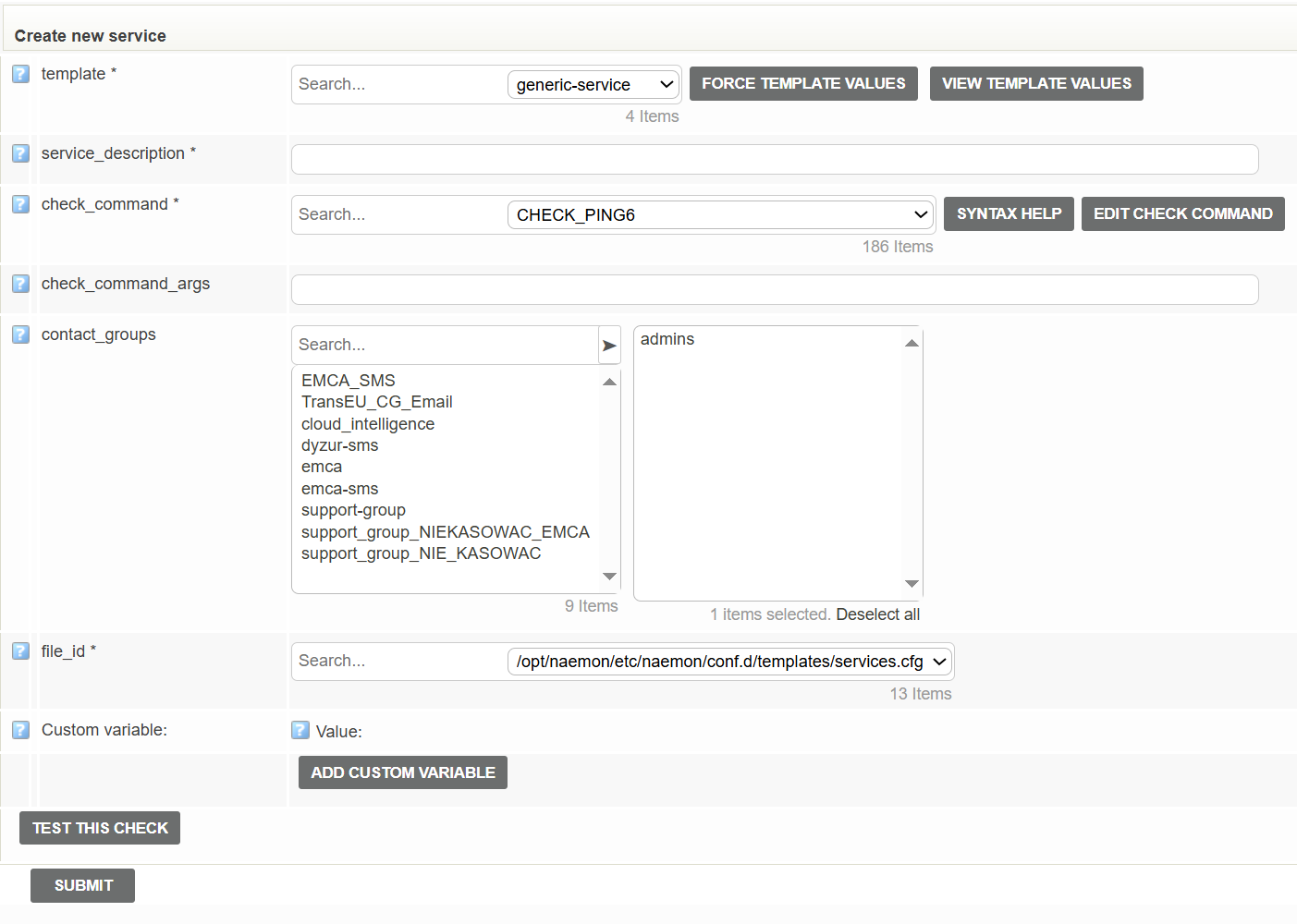
Note: If You are uncertain about the syntax of the metric yo uare trying to use, you can use Syntax Help button which will show you the documentation for the plugin, including available options.
Later, you can check your syntax with Test This Check button and see if the metric returns proper data. You will be informed about any errors with their specifc details, as the plugin logs them.
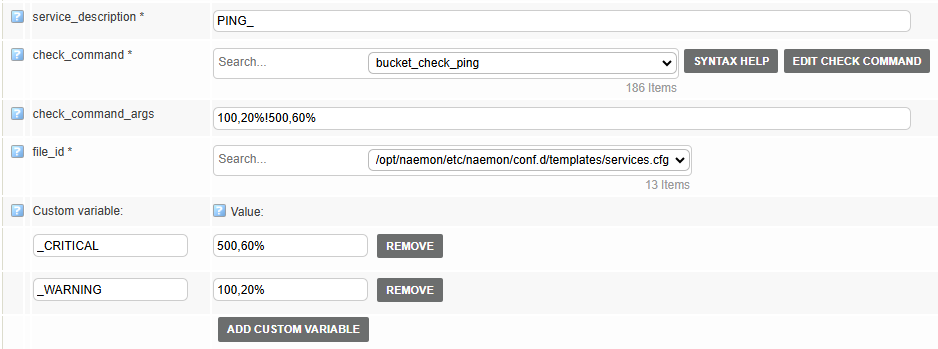
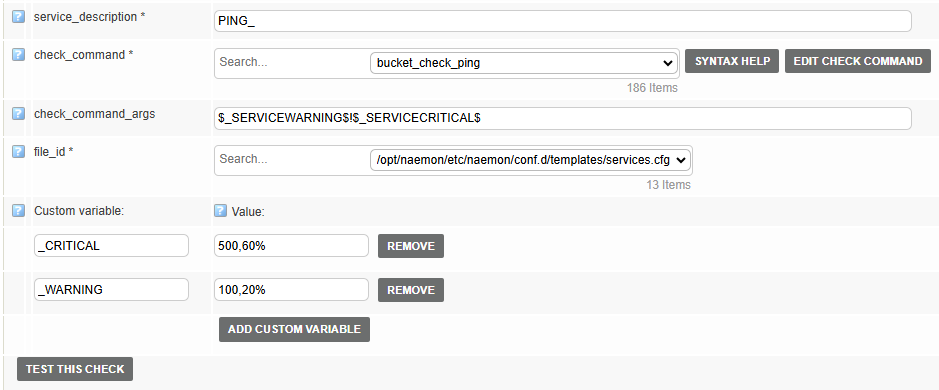
Example:The administrator might define the metric paraemters with a custom named variables. As shown in the following images, supplying raw parameters or custom variables yields the same results. Additional help regarding custom variables can be found under “?” sign next to the “Custom variable” field.